How to use the mockup generator
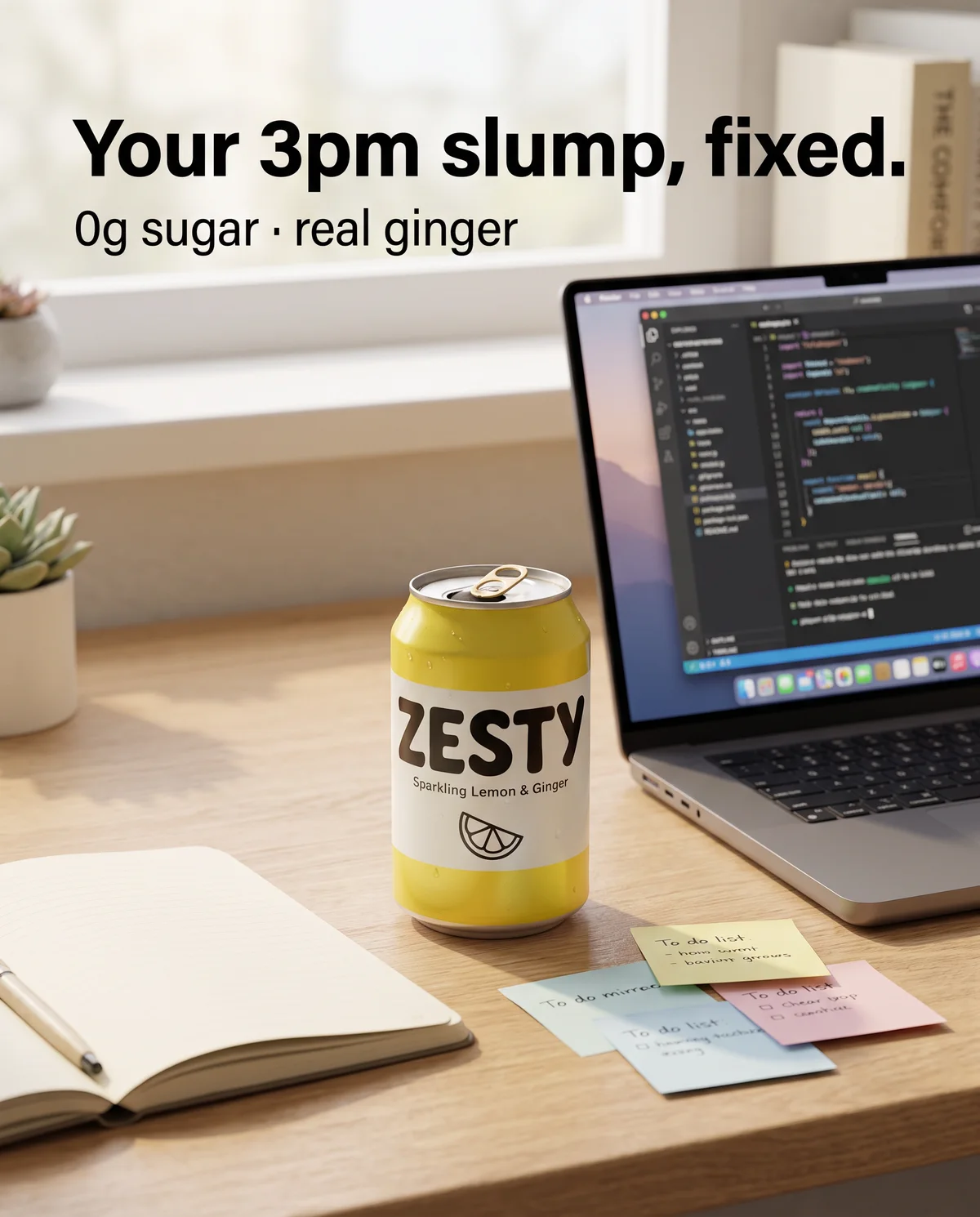
- Add your image. Drop in the image you plan to run, or keep the sample. A 4:5 image suits the feed. If you have a separate 9:16 version for Stories and Reels, add it in the second slot. Without one, the vertical previews reuse the feed image.
- Type the words that sit around the image. Brand name, website, primary text, headline and the button label. These are the fields you fill in when you build the ad, not the words printed on the picture.
- Switch between Feed, Story and Reel. Each preview draws a generic phone interface around your ad.
- Turn on the safe zones in the Story and Reel previews to see the margins the interface may cover.
- Pick fill or fit when the image doesn't match the frame. Fill crops the edges. Fit shows the whole image over a blurred copy of itself.
The image is read on your device and drawn in the page. It is never sent to a server, so an unreleased product, a price that isn't live yet or a client's work in progress stays private.
What each preview shows
| Preview | What sits around your image | What to look for |
|---|---|---|
| Feed | Brand row and "Sponsored" label, primary text above, then website, headline and button in a bar below | Does the primary text add something the image doesn't already say? Does the headline survive the bar? |
| Story | Progress bar and brand row at the top, a button at the bottom | Is the message on the image itself? Does anything you need sit under the top bar or behind the button? |
| Reel | Brand row, caption, audio line and button along the bottom, like, comment and share icons down the right | Is the product or any text inside the bottom margin or behind the icons? |
The primary text is clamped to three lines in the feed and two in the Reel, with a "See more" marker when it runs longer, and the headline shows on a single line. Those are stand-ins for the real cut, which moves with screen size, app version and language, so read them as a warning light rather than an exact count.
The margins it draws
As of October 2026, Meta's Ads Guide recommends a 4:5 image for Facebook Feed ads, at 1440 × 1800 pixels, and a 9:16 frame at 1440 × 2560 pixels for Instagram Stories and Reels. For both vertical placements, the guide suggests leaving roughly 14% of the top, 35% of the bottom and 6% on each side free of text, logos and other key elements. Those are the margins the generator shades. Sources: Meta's Ads Guide entries for Facebook Feed images (opens in a new tab), Instagram Stories images (opens in a new tab) and Instagram Reels video (opens in a new tab).
In the feed preview, an image taller than 4:5 is cut down to 4:5 and a very wide image has its sides trimmed. Square and landscape images keep their own shape. If a placement needs a different crop, make that version yourself rather than trusting an automatic one.
A worked example: one bottle, three frames
Ferrow is a fictional brand selling an insulated steel bottle for $13. Its designer made one 4:5 image: the bottle in a bike's bottle cage, the line "Cold for the whole commute" across the top and a "Free engraving" badge in the bottom right corner. The headline field read "Ferrow insulated steel bottle, 750 ml, free engraving". This is what the generator showed before anything was launched.
| Preview | What it showed | The fix |
|---|---|---|
| Feed | The bar showed only the start of the headline, so the free engraving offer never appeared | Lead with the offer: "Free engraving on every Ferrow" |
| Story, fill | With no 9:16 version, filling the frame cropped both sides of the image and half the badge with them | Make a 9:16 version with the bottle centred |
| Story, fit | Fit kept the whole image, but the badge landed inside the bottom 35% margin | Move the badge up in the 9:16 version |
| Reel | In the new 9:16 version, the badge still sat behind the share icon on the right | Bring the badge in from the edge, under the headline |
None of these problems shows up when you look at the flat file on a desktop screen. Each took minutes to fix before launch, and each would have taken a round of testing to discover after it.
What a mockup can tell you, and what it can't
A mockup is good at four things:
- whether a crop cuts the product, the price or the offer
- whether the words around the image repeat the image instead of adding a reason to buy
- whether the button label matches the promise
- whether text sits where the interface is likely to cover it
It can't tell you how people will respond, which only a live test answers. It can't show the exact layout on a given phone, app version or language. And it can't tell you whether Meta will approve the ad.
Checks worth running on every layout
- Shrink it. Look at the preview at the size a phone shows it, at arm's length. If you squint to read the image text, it's too small or too long.
- Read the three layers in order. Image, then primary text, then headline. Each should add something. If the headline repeats the image line, swap it for the offer or a proof point.
- Match the button to the page. "Shop now" suits a product page, "Learn more" suits a guide or a quiz. A button that promises a purchase and lands on a blog post wastes the tap.
- Check one ad per layout per placement. Ads that share a layout share crop problems, so you rarely need to check every ad in a batch.
- Check video by its frames. The generator takes still images. For a video, export the opening frame, the busiest frame and the end card, and run each through the Reel preview.
From preview to launch
BulkAds' AI ad generator makes batches of up to 12 ads from your real product photo in 1:1, 4:5 or 9:16, each with its own headline, primary text and description, and any of them can be dropped into this preview. When you launch with the bulk ad launcher, every campaign, ad set and ad is created paused in your own ad account, so you can open each ad in Ads Manager's preview before anything spends.
For the words around the image, the headline generator gives options in seven styles, and the ad design checklist covers the image itself. If you only need the margins, the safe zone checker draws them over any image.
Questions people ask
Is my image uploaded anywhere?
No. The generator reads the file in your browser and draws it on your screen. Nothing is sent to BulkAds or anyone else, and the image is gone when you close the page.
Does the mockup look exactly like Facebook and Instagram?
No. It's a generic frame that follows the general layout of each placement. Real apps vary by version, device and language, so use Ads Manager's own preview as the final check.
Which safe zones does it draw for Stories and Reels?
Roughly 14% of the top, 35% of the bottom and 6% on each side, the margins Meta's Ads Guide suggests keeping free of text and logos in both placements, as of October 2026.
Can I preview a video ad?
Not as a moving video. The generator takes JPG, PNG and WebP images. Export a few frames of the video, such as the first frame and the end card, and check each one.
Why does my Story preview look cropped?
Because there's no 9:16 version, so the generator fills the vertical frame with your feed image. Switch to fit to see the whole image, or add a 9:16 version made for the placement.
Keep going
- Features
AI ad generator
On-brand image ads in batches of up to 12
- Features
Bulk ad launcher
A whole batch live on Meta in one go
- Free tools
Reels & Stories safe zone checker
See what Reels, Stories and feed crops may cover on your ad
- Free tools
Ad headline generator
Headline ideas in seven styles from your product, benefit and audience
- Guides
The ad design checklist: 24 checks before an ad goes live
Four tests every ad should pass at phone size, turned into 24 quick checks with the reason behind each one, plus a worked review of three ads from one batch.
- Glossary
Ad mockup
An ad mockup is a preview that shows a draft ad as it would look in place, inside a phone frame with the feed, Story or Reel around it. Teams use it to check the design, crop and text before an ad is approved or launched.
The tool runs entirely in your browser. Results are estimates to plan with — your own account’s numbers always win.
BulkAds AI is an independent product and is not affiliated with, endorsed or sponsored by Meta Platforms, Inc. Facebook and Instagram are trademarks of Meta Platforms, Inc.